DeskSpace

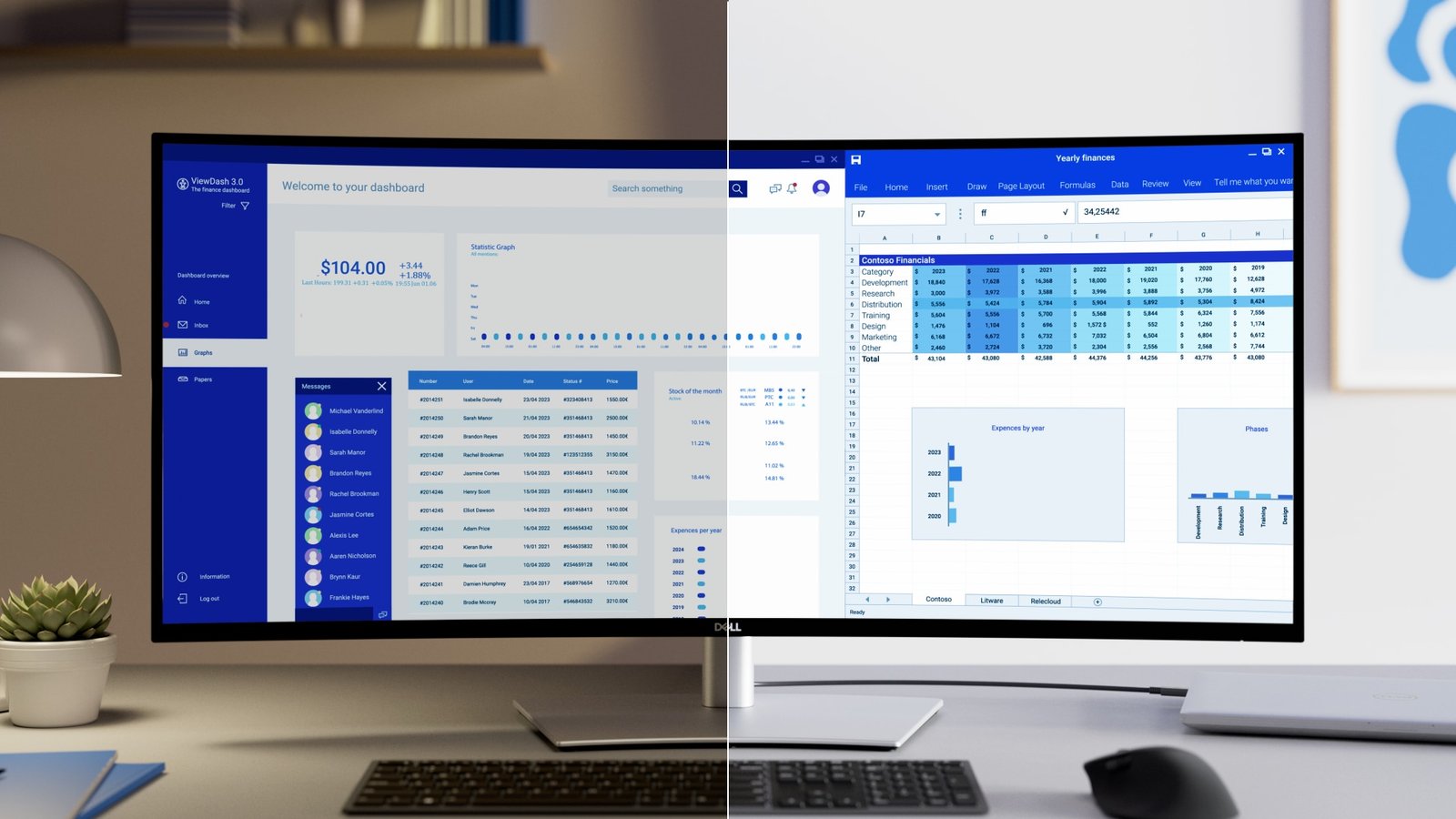
An open laptop beside a monitor can be a useful reference screen or simply another surface to work around. Closing it may make the arrangement look calmer, but it also removes access to its display, built-in camera and keyboard. Decide what those parts do before choosing the neater-looking photograph.
The useful choice is the one that supports your ordinary work with the least unnecessary rearrangement. Keep the lid open when the laptop contributes something you use. Consider a supported closed arrangement when its tasks are already handled elsewhere and the connection setup works with your exact device.
Give the laptop screen a named job
Notice where you look during a normal task. Perhaps the laptop holds reference notes while the main display holds a document. Perhaps you move every window to the monitor as soon as you connect. Those are different reasons to keep or reconsider the open arrangement.
Do the same for calls. If the built-in camera is your usual camera, closing the lid means planning another way to appear on screen. If you use the laptop keyboard or trackpad, those inputs also need a replacement before the closed arrangement is usable. An external monitor alone does not cover all of those jobs.
Keep the open laptop if it supports a real task without crowding the work. If the remaining question is which displays you need, use the display-layout guide first. Lid position should follow that decision rather than quietly deciding it for you.
Check the exact laptop before changing the lid behavior
For Windows, Microsoft's closed-laptop guidance explains how the lid action can be configured in power settings. Follow the relevant instructions instead of assuming that connecting a monitor changes that behavior automatically. An operating-system setting does not establish the laptop's approved cooling or operating position.
For Mac laptops, Apple's external-display troubleshooting calls for power and an external keyboard and mouse when the lid is closed. It also explains that the supported display arrangement depends on the Mac model and the connections involved. A dock does not make every proposed display combination supported.
Lid state itself can matter to the supported arrangement. Apple's documentation for certain M3 MacBook models is a model-specific example, not a rule to apply to every Mac. Check your own model and system requirements before choosing the arrangement.
Plan a home for the closed laptop
Closing the lid does not remove the laptop's footprint. You gain a different surface arrangement only if there is a suitable place for the device and its connections. A vertical holder, shelf or enclosure introduces a placement question of its own.
Read the laptop manufacturer's ventilation and operating-position instructions before changing orientation or placing it in a more confined location. Keep the access needed for connecting, disconnecting and opening it. This guide does not qualify a holder or establish that a closed laptop runs cooler or more quietly.
A stand supports a device; a dock connects devices. Either may have a useful job, but neither alone establishes supported closed-lid operation. Start with the position you need and the connection path the laptop supports, then decide whether another accessory is necessary.
Keep connection approval separate from charging
A laptop receiving power has not necessarily established every display and input connection. Apple's accessory guidance for Mac laptops with Apple silicon explains that accessories may need permission to connect. Charging alone does not demonstrate that data access has been allowed.
If a display or input device is unavailable, follow the relevant connection instructions before treating the lid arrangement as the cause. On a supervised Mac, an administrator may control accessory settings. Resolve that with the appropriate administrator rather than assuming a dock or a new cable will remove the restriction.
Apple also describes a direct display connection as a troubleshooting step when a hub or dock is involved. That is a way to investigate the connection chain, not proof that the dock is defective or that direct connection supports every intended display mode.
Try a complete work sequence
Imagine a reader who keeps meeting notes on the laptop screen and uses its camera for calls. Closing it makes the desk look more uniform but removes both working tools. Remaining open is the simpler choice unless there is a good reason to reorganize those tasks.
Now imagine a reader who does not use the built-in screen, already works with external inputs and has a separate camera ready. A documented closed arrangement is worth investigating because the laptop's existing jobs are covered. Its new resting place and connection behavior still need checking.
These are hypothetical choices, not tested configurations. Before keeping a change, work through the sequence you rely on:
- Connect at the start of work and confirm the intended display and input devices.
- Let the computer enter its intended rest state, then check how you return to work.
- Make an ordinary call using the camera and other equipment you plan to keep.
- Disconnect for departure and confirm the computer's intended state before putting it away.
Changing the lid action for desk use also means you should not assume closing it will put the computer to sleep elsewhere. Microsoft's instructions include restoring Sleep when that is the desired behavior. Keep desk use and carrying the laptop as separate situations.
Choose the simpler arrangement that serves the work
Keep the laptop open when its screen or built-in controls earn their place. Use the usable desk-space guide if another object, rather than the lid, is the real obstacle to the notebook or mouse.
Consider closed mode when the device supports it and the full work sequence is satisfactory. If daily plugging and departure remain awkward, use the cable-planning guide to make those connections more accessible.
The next useful step is to name what the laptop contributes during a normal day. Removing an unused screen and giving up a useful one are different changes, even when the finished desks look similar.
Sources and review scope
The linked Microsoft instructions and Apple external-display, accessory-access and M3-model guidance were read November 2, 2026. They describe documented software and connection requirements; they do not qualify every laptop, dock, holder or operating position.
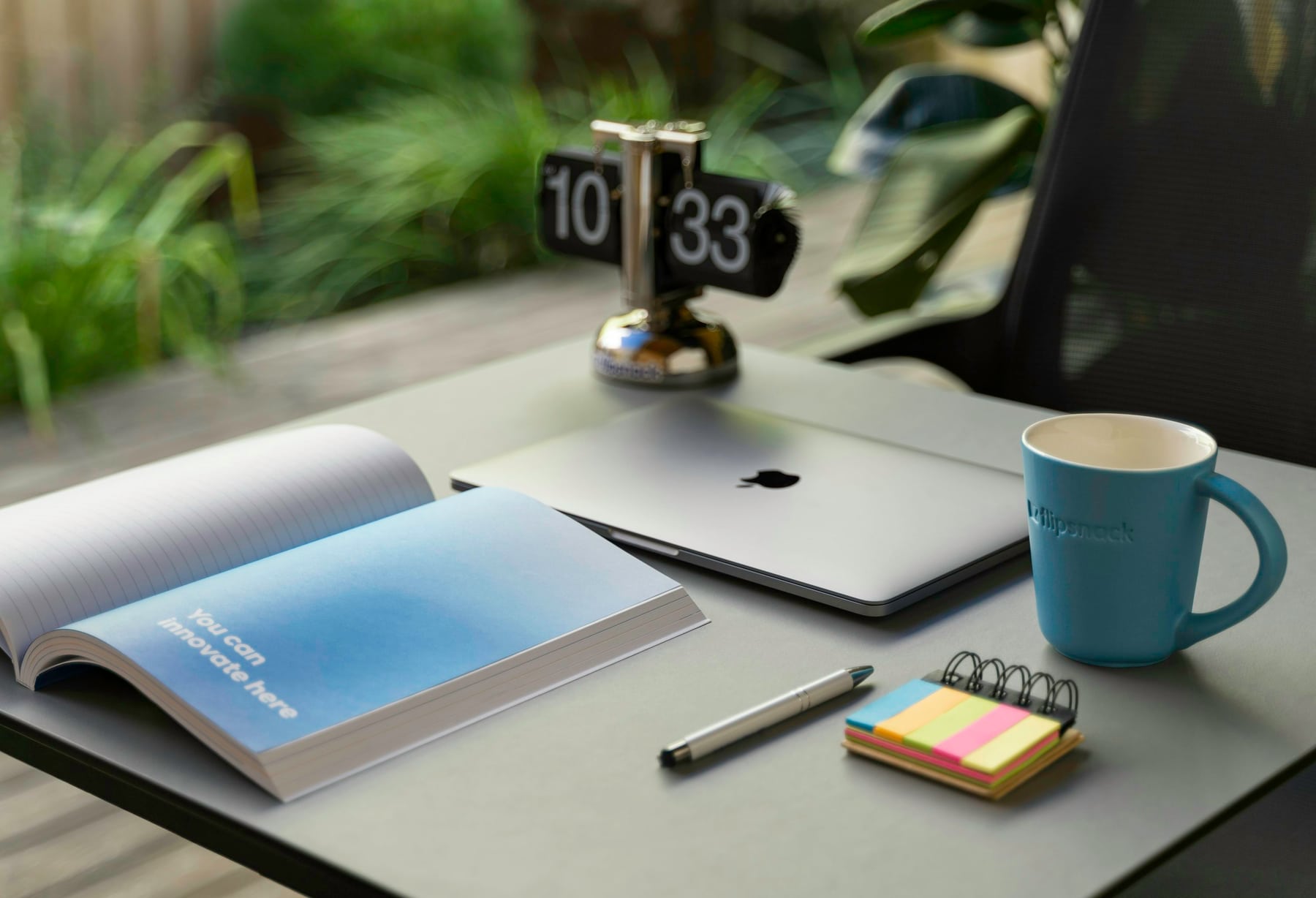
DeskSpaceLab's task comparison, scenarios and work-sequence checks are editorial planning. We have not tested wake behavior, device temperatures, noise or a particular connection chain. Contextual photographs show visible arrangements, not proof of supported operation.
About this guide: An editorial planning profile, not a medical professional. Turns workspace questions into measurements, layout decisions and practical buying sequences. Editorial profile
Keep planning your workspace.
Use the sources and related guides to choose your next step.
Explore buying guides →